Turn Your Wi-Fi Router This Way, Here's Why
If your Wi-Fi drops in the bedroom or crawls to a stop when you're streaming in the living room, you might not need a new router at all. A lot of weak signal problems come down to where the router sits and which way it's pointed.
Wi-Fi signal spreads out from the router the way ripples spread from a stone dropped in water. Where you put that stone changes everything.
Get It Off the Floor and Out of the Cabinet
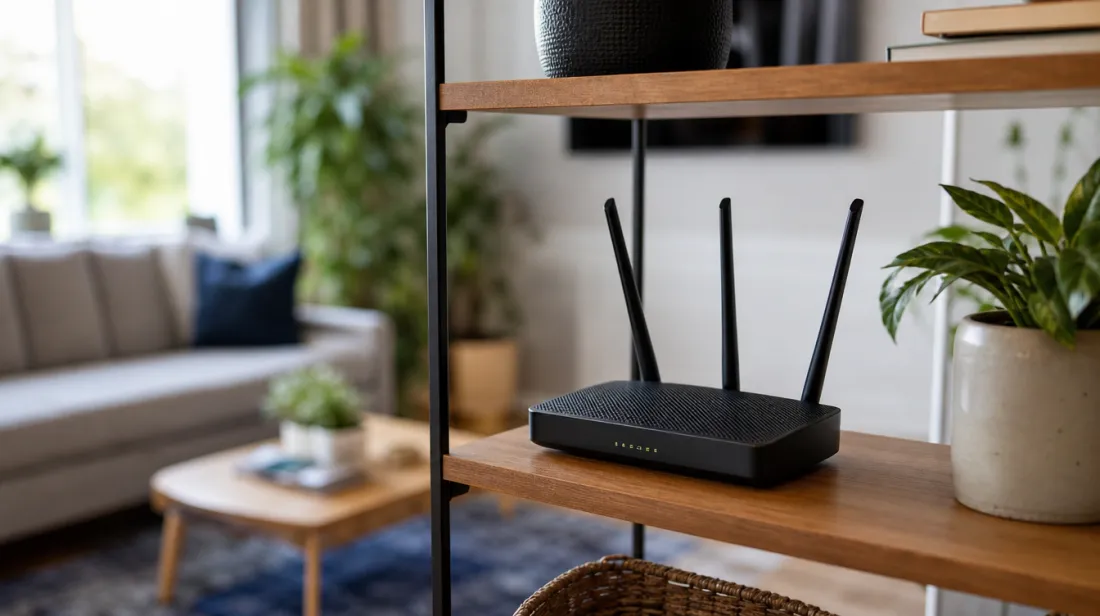
Routers stuffed into a media cabinet or sitting on the floor behind the couch lose a big chunk of their range before the signal even leaves the room. Put your router up high, ideally on an open shelf around chest height or higher.
Signal spreads outward and downward from a router more easily than it spreads upward from a low spot. A router on the floor is sending half its signal straight into the ground.
Move It to the Center of Your Home
Most people plug the router in wherever the cable line happens to come into the house, which is often a corner. That means half the signal goes outside your walls where nobody needs it.
If you can, move the router closer to the middle of your home, even if that means running a longer ethernet cable from the wall jack. Every wall and floor the signal has to pass through weakens it.
Tip: Thick walls, mirrors, and metal appliances block Wi-Fi signal more than drywall does. Avoid placing the router right behind a fridge, a mirror, or a metal filing cabinet.
Angle the Antennas, Don't Just Stand Them Straight Up
If your router has external antennas, don't line them all up straight. Point one straight up and angle the other outward at roughly a right angle to it.
Wi-Fi signal actually travels outward in a flatter pattern from the antenna, not straight up like a flashlight beam. Angling one antenna sideways helps the signal reach rooms on the same floor instead of just the ceiling above it.
Keep It Away From the Microwave and the Cordless Phone Base
Microwaves and older cordless phone bases use the same radio frequency as your 2.4GHz Wi-Fi band. Running the microwave can visibly slow your Wi-Fi if the router sits nearby.
Give your router a few feet of clearance from the kitchen and from any cordless phone base, baby monitor, or Bluetooth speaker that stays plugged in all day.
Restart It Once a Month
This isn't about placement, but it matters just as much. Routers build up small software errors over weeks of constant use, the same way a computer gets sluggish before a restart.
Unplug your router, wait ten seconds, and plug it back in once a month. Many routers also have a setting to schedule automatic restarts overnight, usually found in the router's app under System or Maintenance.
Tip: If your internet provider gave you a combo modem-router unit, restarting it also clears out a lot of connection errors that build up over time.
Use the Less Crowded Band if Your Router Offers One
Many routers broadcast on two bands at once, usually named something like "HomeNetwork" and "HomeNetwork 5G," even if you never noticed the second one. The 2.4GHz band travels farther through walls but gets crowded easily, while the 5GHz band is faster up close but weaker at a distance.
If you stream video or make video calls in a room close to the router, connecting to the 5GHz option usually feels noticeably smoother. For rooms farther away, like a back bedroom, the regular band is often the more reliable choice.
Check the Router's Age
Most internet providers upgrade their equipment every few years, and a lot of people are still using a router from a plan they switched off years ago. If yours is more than five or six years old, it may simply not support the speeds your current internet plan pays for.
Call your provider and ask if a newer router is included with your service, since many companies swap it out for free. There's a good chance you're paying for speed your old equipment can't actually deliver.
Keep the Firmware Updated
Routers run their own small software, called firmware, that occasionally needs an update the same way your phone does. An outdated version can run slower and be less secure than it should be.
Most routers let you check for updates through their companion app or a web address printed on the router itself, usually under a Settings or Advanced menu. Many newer routers can be set to update automatically, which is worth turning on if the option is there.
The Bottom Line
Before you spend money on a new router or a mesh system, try moving the one you have. Getting it up off the floor, closer to the center of your home, and angled correctly solves more dead-spot problems than people expect.
It costs nothing and takes about ten minutes. If your Wi-Fi is still weak after that, then it's worth looking at your equipment.